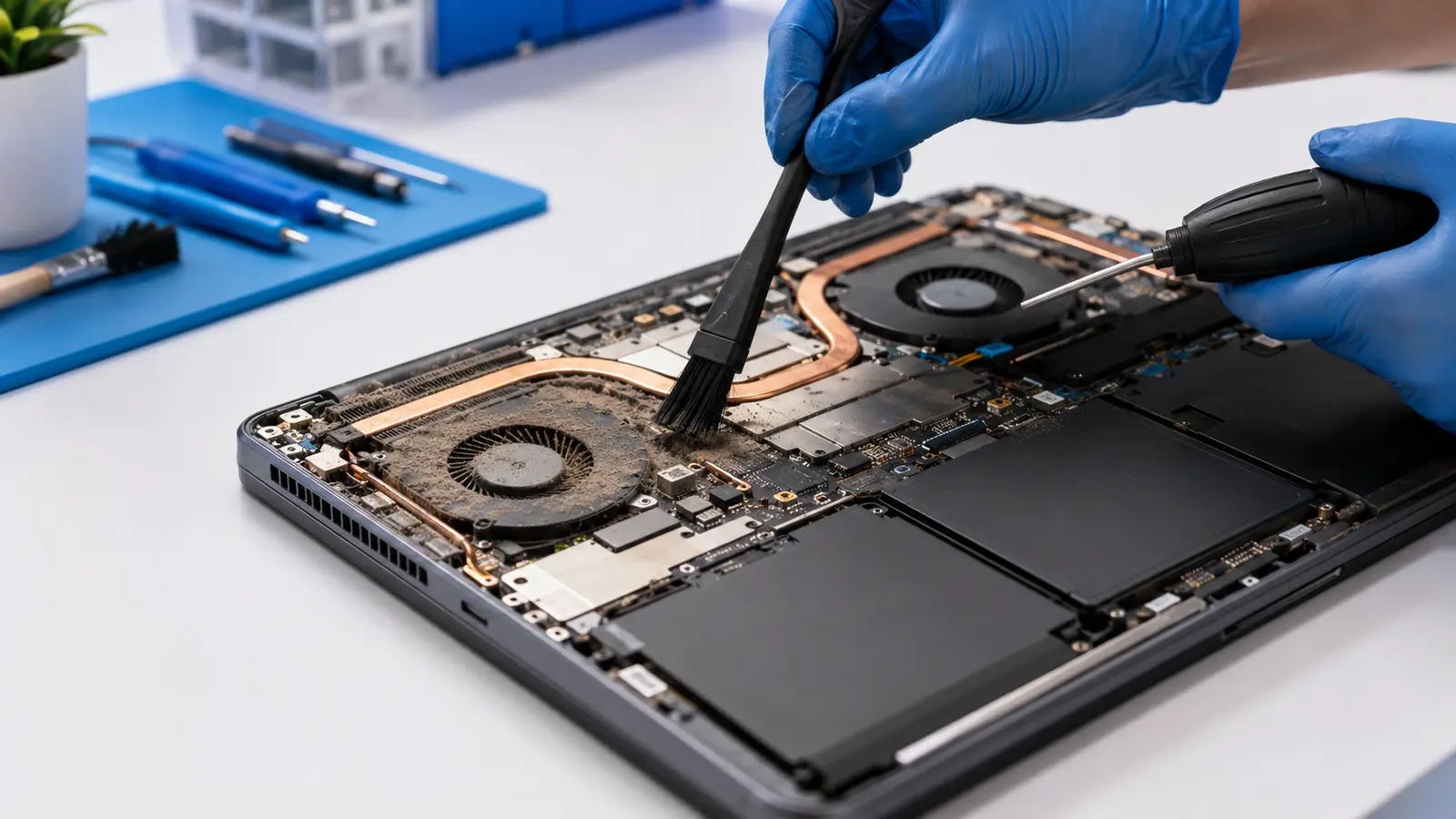
If your laptop overheating and loud fan noise have gotten worse lately, the fan isn’t broken — it’s working overtime to cool a laptop that’s struggling to breathe. In most cases dust buildup, blocked vents, or old thermal paste are the cause, and a cleaning or thermal paste service brings temperatures back to normal. In some cases it points to a failing fan that needs replacement.
1. Common Causes of Laptop Overheating and Loud Fan Noise
A laptop’s cooling system is small by design, which means it doesn’t take much to throw it off. Here are the most common reasons behind laptop overheating and loud fan noise.
1.1 Dust Buildup Blocking Airflow
Dust and lint collect on the intake vents and internal heatsink over months of normal use. As airflow gets restricted, the fan has to spin faster and louder to move the same amount of air, and heat has nowhere to go.
1.2 Using the Laptop on a Soft Surface
Beds, couches, and pillows block the intake vents on the bottom of most laptops. Even a laptop in perfect condition will run hot and loud if the vents can’t pull in air — try a hard, flat surface before assuming there’s a hardware problem.
1.3 Dried-Out Thermal Paste
Thermal paste transfers heat from the processor to the heatsink. Over a few years it can dry out and lose effectiveness, causing the CPU to run hotter than it should even with clean vents and a fan in good condition.
1.4 A Failing or Dying Fan
Fans wear out. A grinding, rattling, or high-pitched noise — rather than just louder airflow — often means the fan bearing is failing and the part needs replacement rather than cleaning.
1.5 Background Apps Working the CPU Too Hard
Browser tabs, sync software, and background updates can keep the processor working harder than expected, which raises heat and fan speed even on a laptop with no hardware problem at all.
2. Quick Fixes to Try First
Before booking a repair, these steps rule out the easiest causes of laptop overheating and loud fan noise:
- Use the laptop on a hard, flat surface instead of a bed, couch, or your lap
- Check that the vents aren’t visibly blocked by dust, and gently clean the exterior vents with compressed air while the laptop is off
- Close unused browser tabs and background apps, and check Task Manager or Activity Monitor for anything unexpectedly using high CPU
- Make sure the laptop is running on a flat, elevated surface (a laptop stand or even a book) to improve airflow underneath
- Restart the laptop — a stuck background process can sometimes cause sustained high fan speed
If laptop overheating and loud fan noise persist after these steps, the cause is more likely internal dust buildup, thermal paste, or a failing fan.
3. Warning Signs You Shouldn’t Ignore
Most laptop overheating and loud fan noise issues are inconvenient rather than dangerous, but a few signs mean it’s time to stop using the laptop and get it looked at: the laptop shuts down unexpectedly during use, the case becomes hot enough to be uncomfortable to touch, the fan runs loudly even when the laptop is idle, or you notice a burning smell. These point to a cooling system that’s no longer keeping up.
4. When Should You Get It Inspected?
For laptop overheating and loud fan noise that doesn’t clear up on its own, a professional inspection is worth getting when:
- Cleaning the external vents and changing the laptop’s surface don’t help
- The fan makes a grinding, rattling, or high-pitched noise
- The laptop shuts down or throttles performance during normal use
- It’s been more than 2-3 years since the last internal cleaning or thermal paste service
A free diagnostic can confirm whether a cleaning, a thermal paste service, or a fan replacement is what your laptop actually needs before any repair is approved.
5. Frequently Asked Questions
Is it normal for a laptop fan to be loud sometimes?
Yes — occasional laptop overheating and loud fan noise during demanding tasks like gaming, video editing, or large downloads is normal. It becomes a concern when the fan is loud during light use, runs constantly, or the laptop stays hot even when idle.
Can I clean the dust out of my laptop myself?
You can safely clean external vents with compressed air while the laptop is off. Opening the laptop to clean the internal heatsink and fan, or to replace thermal paste, involves removing panels and handling sensitive components, so most customers prefer a professional service to avoid damaging connectors or seals.
How much does laptop overheating repair cost?
Laptop and computer repair pricing varies by issue — a cleaning and thermal paste service costs less than a fan replacement, for example. See our phone repair prices page for how our diagnostic-first pricing works, or request a free quote for an exact price.
Will overheating damage my laptop permanently?
Occasional overheating that causes shutdowns is usually a protective response and doesn’t damage the laptop by itself. Prolonged, repeated overheating can shorten the life of the battery and other internal components over time, which is why it’s worth addressing rather than ignoring.
Not Sure Why Your Laptop Is Running Hot?
Tell us what your laptop is doing — loud fan, hot to the touch, shutting down, or something else — and we can help you understand the most likely cause before you schedule a repair.
Ask Us About Your Device